Small Businesses Commercial Businesses Industrial Businesses
Dome Cameras Infra Red Cameras PTZ Cameras Mini Cameras Spy Cameras Mobile Camera
PC Based DVR 1-4 PC Based DVR 5-8 Non-PC Based DVR 1-4 Non-PC Based DVR 5-8 Mobile Camera
Main Software Other Software Manuals, IP, Codec Firewall Misc Non PC Based DVR
cctv security calgary

xtechcam CCTV for Small Business CCTV for Medium sized Businesses CCTV for Large Businesses

xtechcam

Blackberry Setup for Security Camera

To allow remote access to your Geovision system from Blackberry enable these setting on your Geovision system first.

Application Download and IP Finder

  1. Install BBView from the Geovision Disk to any PC
  2. Install Blackberry Desktop Manager software
  3. Connect your Blackberry with USB cable to your laptop or desktop
  4. Open up IE on the DVR. Go to www.ipchicken.com   Write down the current IP address. ie. 12.34.56.78
  5. You have to do the above step to find IP in the store where the Security System is located

Geovision Blackberry Access Setup

The Geovision software CD included with Geovision DVR cards and Geovision IP camera software includes a program on it called BBView. BBview is the blackberry application that needs to be installed. To install BBview, please follow these steps:

  1. Unzip BBView.zip
  2. Browse BBView folder which you have just unzipped, double-click and run Setup
  3. Proceed in each step. Select installation path and select Next to continue
  4. Proceed until installation has finished
  5. Connect your BlackBerry via USB to your computer and launch BlackBerry Desktop Manager
  6. In the menu, select Application Loader, which will display all the applications currently loaded on your Blackberry
  7. Locate Add button above the applications, click on the button to bring up add application dialog box
  8. Navigate to the folder as selected in Step 4. By default, the path is C:\program files\geovision\bbview. Locate the file in the folder with .alx extension
  9. Choose OK and this application will appear in the list along with the other software installed previously 3
  10. Once all desired applications have been introduced into the application loader, verify that each of the application has a check mark next to them.
  11. Click Next which appears below the list of applications
  12. BlackBerry Desktop Manager will perform synchronization and your BlackBerry may restart
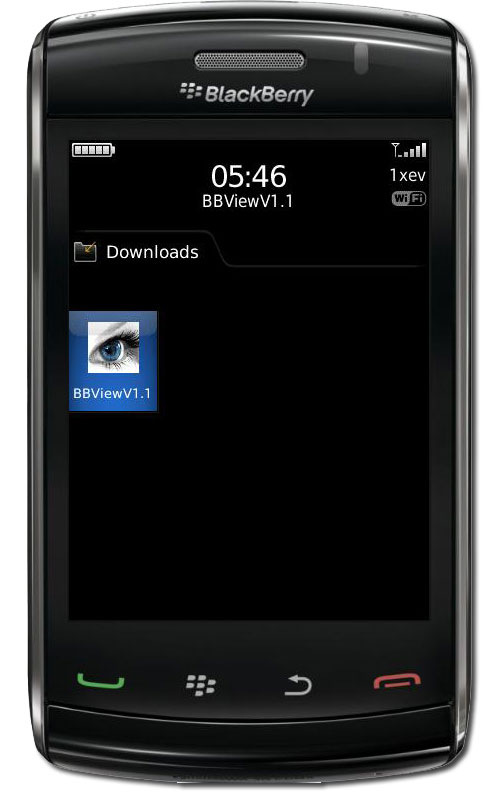
    Upon rebooting, GeoVision BBView should appear on the applications screen of your device

Connecting the Blackberry to GeoVision DVR

To connect your BlackBerry phone to GV-DVR, follow these steps:

  1. To activate TCP/IP connection on your BlackBerry, check with your phone service provider for the correct APN (Access Point Name) and configure the APN on your phone. (e.g. go to Options and TCP)
    For example, T-mobile APN is wap.voicestream.com No username/password is neede
  2. To connect to GV-DVR, select BBView application installed on your device (normally on Blackberry desktop)
  3. Select Create Live Connection. In the login screen, enter the IP address, port number, username and password used by GV-DVR.
    The default port number is 8866. Select Connect to initiate connection

xtechcam